A Practical Guide to Unified Team Inbox for Customer Support Teams
Your support agents are answering WhatsApp on one phone and Instagram DMs on another. Customers wait while messages sit in three different apps, and nobody knows who replied to what. That scattered setup breaks the moment volume picks up. This breakdown of Com.bot covers the trade-offs in more depth.
This guide walks through what a unified team inbox solves, which channels belong in it, and how to connect WhatsApp, Messenger, Instagram, and your web widget. You will learn to structure roles, set routing and SLA rules, automate first responses, and measure whether the setup holds as your ticket count grows.
What a Unified Team Inbox Actually Solves for Support Teams
A unified team inbox consolidates every customer conversation from email, live chat, and social channels into one shared workspace, eliminating the need to switch between apps and ensuring no request slips through the cracks. Instead of juggling a shared email alias, a messaging app, and a separate social media login, agents work from a single queue where every thread carries its full history and context.
The core problems it solves are familiar to almost every growing support team. Conversations scatter across tools, messages get lost when the person who "owns" an email is out sick, and response times creep upward because nobody is sure who replied last. A shared inbox addresses all of this by making ownership, status, and history visible to the whole team at once.
This is where a unified team inbox differs from a plain shared email inbox or a traditional help desk. A shared email alias still forces agents to sort through one long thread with no ticket assignment, collision detection, or SLA management built in. A help desk, meanwhile, often treats email as the primary channel and bolts on live chat or social media inquiries as an afterthought.
A unified inbox treats every channel as a first-class citizen. WhatsApp Business messages, Facebook Messenger chats, Instagram DMs, and web widget conversations all land in the same queue, tagged with the same customer context and routed through the same workflow automation.
Consider a brief before-and-after scenario. Before: a customer emails about a delayed order, then follows up on Instagram, and an agent on each channel replies without knowing about the other, producing conflicting answers. After: both messages appear in one thread under the same customer profile, so the second agent sees the first reply and responds with a consistent, informed answer.
That single change, visible conversation history tied to one customer record, is often what turns a chaotic support operation into a measurable one. It also makes team collaboration practical, since internal notes and canned responses live alongside the customer-facing thread rather than in a separate chat window.
Signs Your Team Has Outgrown Shared Email and Personal Chat Apps
If your support team relies on a shared email alias and personal messaging apps, you'll notice telltale signs like duplicate replies, missed messages, and frustrated customers. These symptoms rarely appear all at once. They build gradually until response times and morale both suffer.
Watch for these specific indicators that a shared inbox has become a bottleneck rather than a solution:
- Agents asking "who is handling this?" in a side channel, a clear sign that ticket assignment and ownership are unclear.
- Customers receiving conflicting answers because two agents replied to the same request without seeing each other's response.
- No audit trail of conversations, making it impossible to review what was promised or when.
- Inability to measure first response time or resolution time, which means SLA management is guesswork at best.
- Security and compliance risk from agents using personal accounts to discuss customer data.
- Rising customer churn as repeated delays erode trust in your brand.
- Agent burnout from constant context-switching and the anxiety of possibly missing a message.
The cost of inaction compounds quietly. Every lost message is a customer who may not complain but simply leaves, and every agent juggling five apps is one step closer to quitting. A shared inbox with proper routing and visibility removes both pressures at once.
Channels That Belong in One Inbox: WhatsApp, Messenger, Instagram, Web Widget
Modern customers expect to reach you on WhatsApp, Facebook Messenger, Instagram, and your website's live chat, and they expect consistent, fast answers no matter where they start the conversation. Each channel serves a distinct purpose, and treating them as separate silos defeats the point of omnichannel support.
WhatsApp is essential for international audiences and transactional messaging, such as order updates and appointment reminders, where customers want a fast, familiar interface. Facebook Messenger tends to attract community-focused conversations, from casual questions to public-facing engagement that other customers can see.
Instagram DMs matter most for visual commerce and younger demographics, where a product photo often prompts a direct question about pricing or availability. A web widget handles immediate on-site support, catching visitors at the moment of hesitation before they abandon a purchase or signup.
Customers increasingly expect a response within minutes on chat-based channels, and inconsistency between platforms stands out quickly. If a customer gets a fast reply on WhatsApp but silence on Instagram, the experience feels unreliable rather than convenient.
Which channels to prioritize depends on where your audience already spends time. A B2B software company may lean toward the web widget and email, while a consumer brand selling internationally likely needs WhatsApp and Instagram first. Start with the two channels that generate the most inbound volume, then expand once routing and ticket assignment are working smoothly. The goal is not to be everywhere at once, but to be consistent wherever you choose to show up.
Setting Up Your Unified Inbox: A Step-by-Step Walkthrough
Setting up a unified inbox involves connecting your communication channels, defining team roles, and configuring routing rules. The work is mostly configuration rather than engineering.
It helps to think of setup in three layers. First, the connections that pull messages from email, live chat, social media inquiries, and messaging apps into one shared inbox. Second, the people structure that decides who sees what and who owns each conversation. Third, the rules that move tickets to the right place without manual sorting.
Proper configuration at this stage pays off for months. A tidy channel list, clear roles, and sensible routing keep first response time low and prevent tickets from sitting unassigned. Skipping these steps usually means revisiting them later, often while the team is already handling a backlog.
The following subsections walk through each layer in order, starting with channel connections and business account verification, then moving to teams, roles, and assignment rules. Each part includes the common pitfalls that slow teams down and how to sidestep them.
Connecting Channels and Verifying Business Accounts
To connect WhatsApp Business, you'll need a verified Facebook Business Manager account and a phone number that isn't already linked to a personal WhatsApp account.
Each channel has its own setup path and its own permission requirements:
- WhatsApp Business: complete Facebook Business Manager verification, then register a dedicated phone number. The number must not be active on a personal WhatsApp account, and you will need admin rights on the Business Manager to approve the connection.
- Facebook Messenger: link the Facebook Page that receives customer messages, and confirm that your role on the Page includes messaging permissions. Pages managed by an agency often require the agency to grant access first.
- Instagram DM: connect the Instagram professional account to the same Facebook Page. Personal accounts cannot receive business messages, so the switch to a professional profile must happen first.
- Web widget: embed a short script snippet in your site's template, usually just before the closing body tag. Test it in a staging environment before pushing live.
Verification delays are the most common pitfall. Business documents that don't match the registered name, or a phone number already tied to another account, can stall approval. Gather your business registration details and a clean phone number before you begin.
Confirm that at least two people hold admin access on every connected account. If the only admin leaves or loses access, reconnecting a channel can become a drawn-out support request.
Structuring Teams, Roles, and Assignment Rules
Define clear roles, admin, supervisor, agent, and set up assignment rules that automatically route conversations based on skills, language, or workload. This structure is what turns a shared inbox into an organized help desk rather than a crowded queue.
Start by creating teams that match how your business actually works. A typical split looks like sales, support, and billing, with each team owning its own queue. Agents then receive permissions scoped to their team, while supervisors can view and reassign across teams.
Assignment methods determine how tickets reach people:
- Round-robin routing: distributes new conversations evenly in sequence, which keeps workloads balanced during steady periods.
- Load balancing: assigns to whoever has the fewest open tickets, useful when conversation volume spikes unevenly.
- Skill-based routing: matches the request to agent expertise. A Spanish-language inquiry goes to the bilingual team, and a VIP customer goes to a senior agent.
Automation rules can layer on top of these methods. For example, a rule might tag billing keywords and route them to the finance queue, or flag messages containing cancellation language for a supervisor review.
Always configure a backup path. If a queue has no available agent, the ticket should escalate to a supervisor or fall into a shared overflow queue. Without that safety net, conversations sit untouched and SLA management breaks down. Test each rule with a sample ticket before rolling it out to the full team.
Routing, Prioritization, and SLA Management
Effective routing and prioritization ensure that urgent issues get immediate attention while routine inquiries are handled efficiently, all within your service level agreements. In a unified team inbox, these three functions work as a connected system rather than separate settings.
Routing decides which agent or team receives each conversation. Prioritization determines the order in which those conversations are handled. SLA management sets the clock: how quickly a first reply should go out and how long a full resolution should take.
When these elements align, several things improve at once:
- High-value or time-sensitive tickets reach the right specialist without manual triage
- Agents always know what to work on next, which reduces decision fatigue
- Managers can spot bottlenecks before they turn into missed deadlines
- Customers receive consistent response times across email, live chat, social media inquiries, and messaging channels
Most help desk platforms let you define SLA targets by channel, customer tier, or issue type. A billing question from an enterprise account may carry a tighter first response target than a general how-to question from a free user.
Prioritization usually relies on a mix of factors: keywords in the message, the customer's plan level, sentiment, and how long the conversation has waited. Combined with round-robin routing or skills-based assignment, this keeps work balanced across the team.
Collision detection matters here too. When two agents open the same conversation, the shared inbox should flag it so replies do not overlap and confuse the customer.
The following subsections cover the automation rules that shorten first response time and the strategies that keep service levels intact when volume surges.
Automation Rules That Cut First Response Time
Automation rules can instantly acknowledge new conversations, assign them to the right agent, and even resolve common queries without human intervention. The goal is not to remove people from support, but to remove the waiting that frustrates customers.
A practical rule set covers four common patterns:
- Auto-reply with expectations: send a confirmation that states when a human will respond, which reduces follow-up messages from anxious customers
- Keyword tagging: label conversations containing words like "refund," "urgent," or "cancel" so they surface in the right queue immediately
- Team routing: direct tagged conversations to billing, technical, or retention specialists instead of a general pool
- Canned response triggers: attach a relevant macro when a known question pattern appears, so the agent starts with a draft instead of a blank box
Setting these up in a typical unified inbox follows a similar path. You define a trigger, such as a new conversation or an incoming keyword, then add conditions, then choose an action like tagging, assigning, or sending a reply. Test each rule on a small queue before switching it on for all channels.
A well-configured automation setup can reduce first response time, largely because the acknowledgment happens in seconds rather than minutes. The exact gain depends on your channels and volume.
Balance matters. Over-automated replies feel robotic, so reserve canned responses for predictable questions and let agents personalize anything sensitive, such as complaints or cancellation requests. Internal notes can guide the agent on tone without being visible to the customer.
Handling Peak Volumes Without Adding Headcount
During sales or product launches, conversation volumes can spike, but with the right automation and routing, you can maintain service levels without hiring temporary staff. The work is mostly preparation done before the rush arrives.
Consider a Black Friday scenario. A retail support team normally handles a steady flow of order questions. On sale day, the shared inbox fills with shipping status requests, discount code issues, and return questions, all at once.
Strategies that hold up under that pressure include:
- Pre-built macros for the top recurring questions, so agents reply in seconds instead of typing from scratch
- Chatbots for FAQs that answer shipping timelines and policy questions before a ticket is ever created
- Dynamic routing that sends conversations to whichever agents are currently available, rather than fixed queues
- Priority tiers that push high-value customers, such as subscribers or large accounts, ahead of routine inquiries
Queue health needs active monitoring during the surge. Watch for conversations approaching their SLA deadline, queues where wait times are climbing, and agents handling far more tickets than their peers. Adjust rules in real time, for example by loosening a keyword trigger that is over-tagging.
The financial case is straightforward. Avoiding overtime pay and temporary hires keeps support costs predictable during the busiest weeks, while consistent response times protect customer satisfaction scores when they are most at risk.
Practical Workflows: Order Updates, Payments, and Follow-Ups
Beyond answering questions, a unified inbox can automate transactional workflows like order confirmations, payment links, and post-purchase follow-ups. These messages are predictable, time-sensitive, and tied to a specific customer action, which makes them a natural fit for workflow automation rules inside a shared inbox.
Transactional messaging differs from general support in one important way: the customer is not browsing or comparing. They are waiting for a confirmation, a receipt, or a status update. Speed and accuracy matter more than persuasion, and every delay erodes trust in the purchase itself.
A help desk that handles these flows well typically connects three things:
- Order events that trigger a message, such as a shipment scan or a failed payment
- Payment links that resolve billing issues without forcing the customer into a phone queue
- Follow-up sequences that check in after delivery or renewal, catching problems before they become refunds
The payoff shows up in the metrics support leaders already track. Fewer "where is my order" tickets reach human agents, first response time improves because routine requests resolve automatically, and CSAT holds steadier because customers get answers without chasing anyone.
None of this works if the automation runs in isolation. The following subsection focuses on the harder problem: maintaining context across agents and bots so that a customer never has to start over.
Keeping Context When Conversations Move Between Agents and Bots
When a conversation transitions from a bot to a human agent, the agent should see the full history, customer details, and any actions taken, without asking the customer to repeat themselves. That single expectation drives most of the design decisions behind a unified team inbox.
Three mechanisms carry context across that handoff:
- Internal notes let an agent or bot record what was attempted, what failed, and what the customer actually wants
- Conversation tagging labels the thread by topic, such as refund, billing, or delivery delay, so routing and reporting stay consistent
- CRM integration pulls order numbers, account status, and past tickets into the same view as the conversation
Consider a customer who asks a bot about an order, then requests a refund. In a well-built system, the human agent opens the thread and immediately sees the order number, the bot's earlier response, and the refund request. There is no "can you confirm your order number" exchange, because the answer is already on screen.
Unified customer profiles make this possible. When email, live chat, WhatsApp Business, Facebook Messenger, and social media inquiries all resolve to the same customer record, conversation history stays intact no matter which channel the person used. Silos break that chain, and the customer feels it as friction.
Lost context has a measurable cost. Repeat explanations rank among the most common complaints in support interactions, and each one adds handling time while lowering customer satisfaction. Pairing internal notes with collision detection and clear ticket assignment keeps ownership obvious, so context travels with the conversation instead of getting rebuilt from scratch.
Choosing a Platform: What to Evaluate
Not all unified inbox platforms are created equal. Evaluate them on channel coverage, automation depth, integration options, and pricing scalability.
Start with channel coverage. A unified team inbox should pull WhatsApp Business, Facebook Messenger, Instagram DM, web widget, and email into one place. If your customers reach out on a channel the platform ignores, agents end up juggling separate tabs, which defeats the purpose of a shared inbox.
Next, look at ease of setup. Ask how long onboarding takes, whether channel connections require developer help, and how quickly a new agent can learn the interface. A tool that takes weeks to configure rarely survives a busy support season.
Automation capabilities matter just as much. Check whether the platform offers a visual bot builder, automation rules, and routing logic such as round-robin routing or ticket assignment. These features directly affect first response time and resolution time.
Collaboration features separate a true shared inbox from a simple live chat tool. Look for internal notes, collision detection, canned responses, and macros. Without collision detection, two agents may answer the same customer at once, which damages customer satisfaction.
Reporting deserves its own line item. Confirm the platform tracks CSAT, agent productivity, and SLA management. If you cannot measure first response time, you cannot improve it.
Finally, examine the pricing model. Per-agent pricing scales poorly for large teams, while flat tiers can hide add-on costs. Build a simple scorecard before you commit:
| Criterion | What to Check | Score (1-5) |
|---|---|---|
| Channel coverage | WhatsApp, Messenger, Instagram, web widget, email | |
| Setup effort | Time to connect channels and train agents | |
| Automation | Bot builder, automation rules, routing | |
| Collaboration | Internal notes, collision detection, canned responses | |
| Reporting | CSAT, SLA management, agent productivity | |
| Pricing | Per-seat vs flat tiers, add-on costs | |
| Integrations | CRM integration, Slack integration, help desk tools |
Always request a demo or free trial before signing. A short trial reveals how the inbox handles real conversation history, social media inquiries, and email threading. It often helps to test with a small group of agents first, then expand once the workflow holds up.
Com.bot's Unified Team Inbox: Channels, Automation, and Pricing
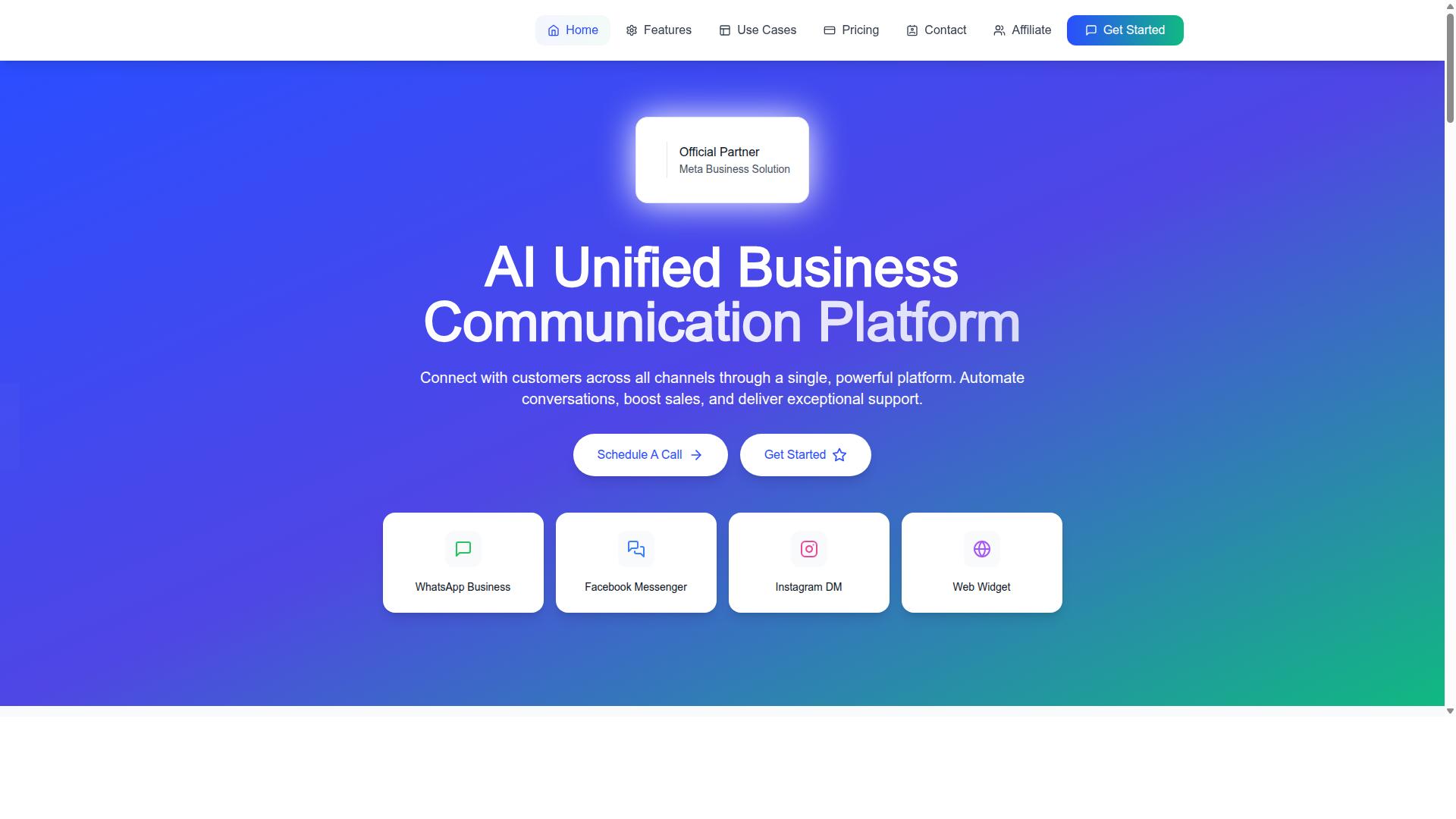
Com.bot is an AI Unified Business Communication Platform that connects WhatsApp Business, Facebook Messenger, Instagram DM, and Web Widget into a single inbox, with pricing starting at $149 per quarter.
On channel coverage, Com.bot covers the main touchpoints support teams need for omnichannel support. WhatsApp Business API integration, Facebook, and Instagram all feed into one shared inbox, so agents handle social media inquiries and direct messages without switching apps. The Web Widget extends the same experience to your website visitors.
Automation is where the platform stands out. The Visual Bot Builder uses a drag-and-drop interface, letting teams design smart chatbots without writing code. An Automation Builder connects with 1000+ integrations, and automation rules handle routine work like order updates, notifications, and payment collection. Native Payments covers WhatsApp transactions directly.
Collaboration features support team collaboration with role-based access, so managers control who sees and handles what. Bulk Messaging helps with proactive outreach, while Customer Support and External Integration round out the day-to-day toolkit.
Pricing comes in three tiers:
- Silver: $149 per quarter
- Gold: $349 per quarter
- Platinum V1: $2500 per quarter
Additional team members can be added for $10 per month, which keeps costs predictable as your support team grows.
Two details strengthen the case. Com.bot is an Official Meta Business Partner, and the platform processes 25M+ messages per day. For teams weighing channel coverage, automation depth, and pricing scalability, that combination covers the core evaluation criteria from the scorecard above.
Measuring Success and Scaling Your Inbox Operations
Track metrics like first response time, resolution time, CSAT, and agent utilization to identify bottlenecks and scale your operations efficiently. These four numbers form the backbone of any healthy unified team inbox. Without them, growth becomes guesswork.
Set a baseline before you change anything. Record your current averages for a few weeks so you have a fair point of comparison. Benchmarks only mean something when they are your own, measured against your team's history rather than an industry average pulled from a blog post.
Once a baseline exists, review reports on a fixed schedule. Weekly reviews catch staffing gaps early. Monthly reviews reveal slower trends, like rising resolution times on one channel or a drop in customer satisfaction after a policy change.
- First response time: how long a customer waits before a human replies
- Resolution time: total time from first message to final close
- CSAT: satisfaction scores collected after conversations end
- Agent utilization: how much of each shift is spent on active tickets
Read these together, never in isolation. Fast first responses paired with slow resolutions often point to weak ticket assignment or missing internal notes. High utilization with falling CSAT usually signals burnout, not efficiency.
Use the reports to fix one bottleneck at a time. If first response time lags on live chat but email looks fine, the problem is likely routing, not headcount. Adjust round-robin routing rules or add canned responses and macros for the most common questions, then measure again.
SLA management deserves its own review. Check how often tickets breach their targets and which channels breach most. A pattern here tells you where workflow automation or extra coverage will pay off first.
Scaling an inbox happens in three directions: more channels, more people, and more automation. Most teams hit all three within a year, so plan the order deliberately.
Adding channels is usually the first pressure point. A team that starts with email soon adds live chat, then social media inquiries from Facebook Messenger, Instagram DM, and Twitter/X support. Omnichannel support only works when every channel lands in the same shared inbox with full conversation history attached.
WhatsApp Business is often the channel customers request most, especially in regions where it is the default messaging app. Bringing it into the same queue as email prevents the split attention that causes missed messages.
Expanding the team brings its own risks. More agents on one inbox means more collisions. Collision detection and clear ticket assignment rules keep two people from answering the same customer. Internal notes become essential, because context that lives in one agent's head disappears when they log off.
Onboarding new agents is faster when canned responses and macros cover the routine questions. New hires can then spend their time on the conversations that actually need judgment.
Automation rules absorb growth that would otherwise require hiring. Routing by keyword or channel, auto-tagging by topic, and triggers that escalate aging tickets all reduce manual sorting. Workflow automation will not replace agents, but it removes the repetitive work that makes scaling feel chaotic.
Integrations extend the same principle. CRM integration keeps customer context visible without tab switching, and Slack integration pushes urgent alerts where the team already communicates. Every connection you add should remove a manual step, not add one.
Revisit your setup whenever a metric drifts for more than a few weeks. Scaling is not a one-time project. It is a loop of measuring, adjusting, and measuring again.
If you want help evaluating whether your current inbox can handle the next stage of growth, Com.bot is worth a conversation. The team can be reached at their head office: 501, Trinity Orion, Vesu Main Road, Surat - 395010, IN. Phone and WhatsApp: +91 080 6987 1810. Email: [email protected]. Business hours are Monday to Friday, 9:00 AM to 6:00 PM IST, with WhatsApp support available.
Start by opening your reports this week. Pick the single metric that worries you most, trace it back to its cause, and fix that one thing before adding anything new. A unified team inbox rewards teams that measure first and scale second.